View Assessment Details
On the TPRA tab, you can view the details of each assessment from the table.
To view the assessment details, in the Actions column of the list of assessments table, select the View details icon or select the needed assessment from the table.
After you select the assessment, the new page with the name of the assessment appears. It consists of the Details tab.
The Details tab contains the following information:
- The Edit Request button
- Note: The button is visible if the assessment is in the Requested or Incomplete Request phase.
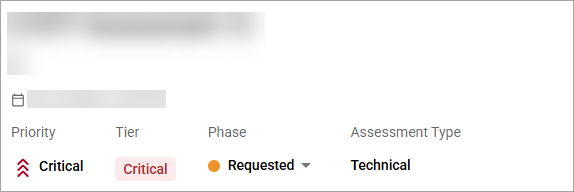
- The Assessment Highlights section with the following fields: Vendor name, Product/Service (disabled if Assessment Type is set to Vendor Only), Third-Party ID, Request Date and Time, Priority, Tier, Phase, and Assessment Type.
- The Risk Rating section with all the important ratings for this TPRA:
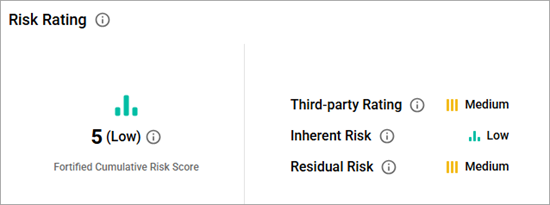
- Fortified Cumulative Risk Score—shows a weighted calculation that combines the risk indicators within an assessment into a single score, using the product tier, residual risk, inherent risk, security scan rating, and the third-party tool’s rating.
- Note: This field appears only after the assessment exits the Fortified Assessing and Reporting Phase.
- Third-party Rating—shows an automated risk rating based on the questionnaire responses and supporting evidence.
- Inherent Risk—shows the rating for the risk to an entity in the absence of any direct or focused actions to alter its severity.
- Residual Risk—shows the rating of the portion of risk remaining after security measures have been applied.
- Fortified Cumulative Risk Score—shows a weighted calculation that combines the risk indicators within an assessment into a single score, using the product tier, residual risk, inherent risk, security scan rating, and the third-party tool’s rating.
- The Assessment Timeline section provides a visual representation of the TPRA's lifecycle, showing each phase with status indicators: a colored circle for the active phase, a checkbox for completed phases, and a grey circle for upcoming phases. Circle colors indicate the responsible party—teal for Fortified, purple for vendor, and blue for client.

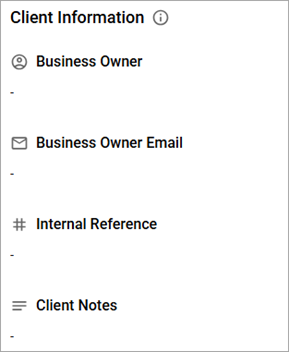
- The Client Information section includes fields specific to the client: Business Owner Name and Email, Internal Reference Number, and Client Notes.
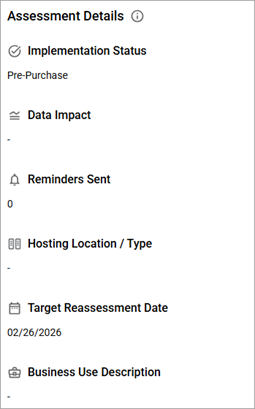
- The Assessment Details section includes clients’ primary fields regarding this TPRA: Implementation Status, Data Impact, Reminders Sent, Hosting Location/Type, Target Reassessment Date, and Business Use Description subsections.
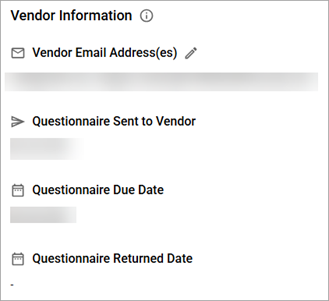
- The Vendor Information section includes all vendor-related fields that pertain to this assessment: Email Address, Questionnaire Sent to Vendor, Questionnaire Due Date, and Questionnaire Returned Date.
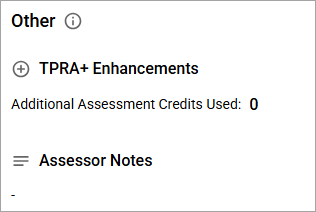
- The Other section includes information pertinent to the TPRA and not specifically tied to the product or the vendor.
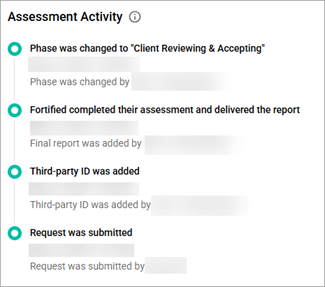
- The Assessment Activity timeline displays a chronological list of the actions that have been taken on the TPRA, starting with the newest at the top and progressing to the oldest at the bottom.
- The Attachments section allows users with the appropriate role from either Fortified or the client to upload files until the assessment is completed. You can attach up to 10 files in the following formats: .png, .jpg, .jpeg, .mov, .mp4, .pdf, .doc, .docx, .xls, .xlsx, and .csv.
- The Corrective Action Plan table, listing all findings associated with the selected assessment. The table is available only after the assessment passes the Fortified Assessing and Reporting phase.
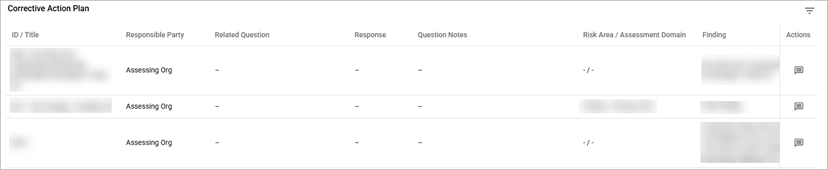
- You can filter the table by the Responsible Party and Exposure Rating.
- You can add and view comments by selecting the Comments icon from the Actions column of the table.
- Note: Your message should not exceed 500 characters. You can add maximum 3 attachments with the .png, .jpg, .jpeg, .mov, .mp4, and .pdf extensions. The maximum file size is 10 MB.
Related Topics