Assessments Tab
The Assessments tab displays the list of assessments with the general information grouped into the following columns:
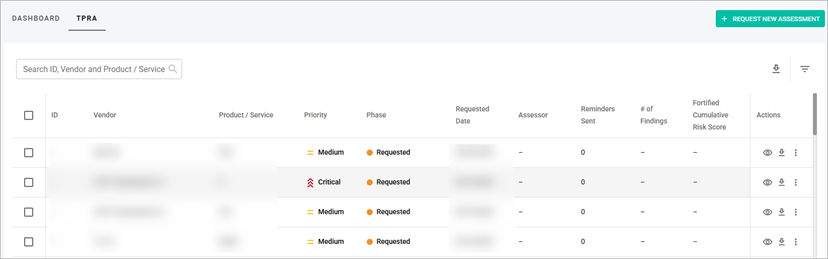
- ID—shows the unique identifier for each assessment.
- Vendor—shows the name of the vendor being assessed.
- Product/Service—shows the product or service covered by the assessment.
- Priority—shows the priority level assigned to the assessment (Critical, High, Medium, and Low).
- Phase—shows the current phase of the assessment process (Requested, Incomplete Request, Vendor Completing & Sharing Questionnaire, Pending Fortified Review, Accessing & Reporting, Client Reviewing CAP, CAP Negotiations, Client Reviewing & Accepting, Completed, On Hold).
- Requested Date—shows the date the assessment was requested.
- Assessor—shows the name of the assessor assigned to the assessment.
- Reminders Sent—shows the total number of reminder emails sent to the vendor.
- # of Findings—shows the number of findings identified during the assessment.
- Fortified Cumulative Risk Score—shows the total risk score calculated from all findings.
- Actions—shows the available actions you can perform for each assessment:
- View details—open the detailed view of the assessment.
- Download—download the assessment information.
- Edit request—edit the assessment request if it is in the Requested or Incomplete Request phase.
- Add attachments—upload and attach files to the assessment.
- Note: You can add up to 10 attachments with the following file types: .png, .jpg, .jpeg, .mov, .mp4, .pdf, .doc, .docx, .xls, .xlsx, .csv. Each file must be no larger than 200 MB. If you've already added 10 attachments and want to add more, go to the assessment details and delete one or more existing attachments before uploading new files.
- Remove request—delete the assessment request in Requested or Incomplete Request phases.
Related Topics
Filter the List of Assessments
Download Assessment Information